

City/County Vehicle Gallery


Purchasing Multiple Memberships
- Views 3.4k
- Created
- Last Reply

A better way to browse. Learn more.
A full-screen app on your home screen with push notifications, badges and more.




By using this site, you agree to our Terms of Use.
Membership_Payments.pdf
MEMBERSHIP PAYMENTS
New and Renewals
This tutorial is going to cover the correct procedure when you wish to purchase more than 1 membership. If you wish to only purchase a single membership, the procedure is very simple. Just select the item you wish to purchase and follow the prompts.
It is just a bit more complicated when you wish to purchase two or more memberships.
Important!: Always enter a quantity of "1". DO NOT enter the total number of memberships that you wish to purchase.
1. You will first need to select "Store" from the Main Menu.
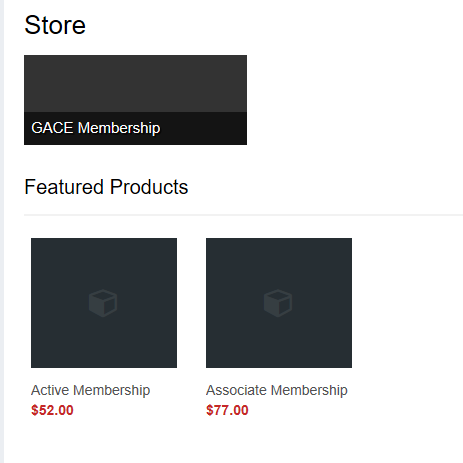
2. When you click the "Store" menu, the products screen should appear.
3. You must then select the item you wish to purchase. For purposes of this tutorial, we will select "Active Membership".
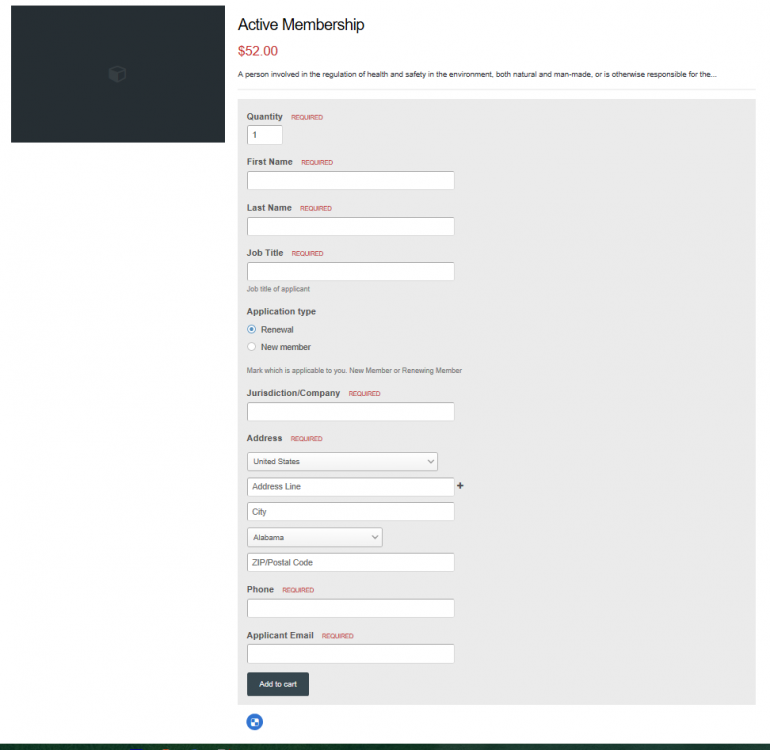
4. Complete all the information in the form. Under "Application Type", please check either "New" or "Renewal". DO NOT forget this important bit of information. Once you have completed all the items with the proper and correct information, click the "Add to Cart" button at the bottom of the form.
Important!: Always enter a quantity of "1". DO NOT enter the total number of memberships that you wish to purchase.
5. If you wish to add another membership, Click the "Continue Shopping" button. The information that you entered for the previous membership is still showing on the screen. Modify the information for the next purchase and then select "Add to Cart" to add that purchase to the Cart. Keep on in the same fashion until ALL memberships that you wish to purchase have been added to the Cart.
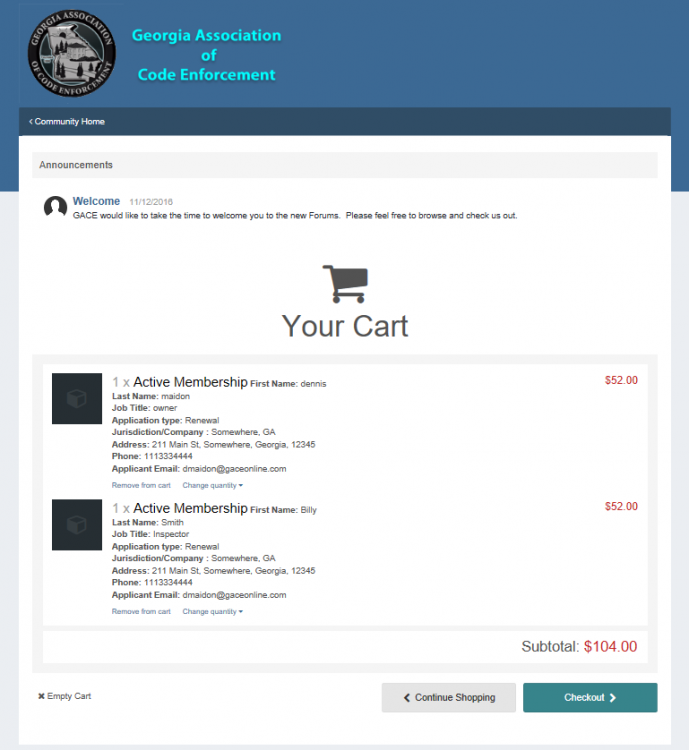
When you have added your last purchase, click the "Review & Checkout" button. You should then see the "Your Cart" screen which contains a listing of all your purchase as well as the total purchase cost. You have two options, "Continue Shopping" or "Checkout >".
If this is your first time in the store or you do not have the correct Billing and Shipping information listed, you will see the following screen.
Make sure that all the information is correct before clicking "Continue to Order Review >".
6. If you selected "Checkout", you should then see the "Checkout" screen which shows all of your purchases and well as your billing address and method of payment.
7. If all the information is correct, Select either "Manual (Check)", "PayPal (PayPal Site)" or "PayPal (Direct Card Entry)" as your method of payment. Then click the "Place Order and Pay" button. In this case, payment is to be made by check. if you chose "PayPal (Check)" as the method of payment, you will be taken to the PayPal login screen. If you chose "PayPal (Direct Card Entry", you will be taken to a PayPal screen to enter your credit card information.
Edited by dMaidon
---
Dennis N. Maidon
Webmaster - GACE Online
dmaidon@gaceonline.com