






Volume I Chapter 6 (December 13, 2023)

By Dennis Maidon in Forums Participation
· 844 views
Calendar & Events
You will find the GACE Calendar in the top menu, labeled "Events". Let your mouse hover over "Events" and a drop-down menu will appear with two options. The options are "Calendar/Events" and "Events/Calendar Overview".

There are several views for the calendar that are available to see, depending on your preference.
- Events Overview
- Month
- Week
- Day
To view the different options, you will need to select your preference from the options menu.

First let's select the option "Events/Calendar Overview". This option was covered in an earlier blog but it's worth mentioning again.
.png.c362f55c866ce520bb167390bd0bf43c.png)
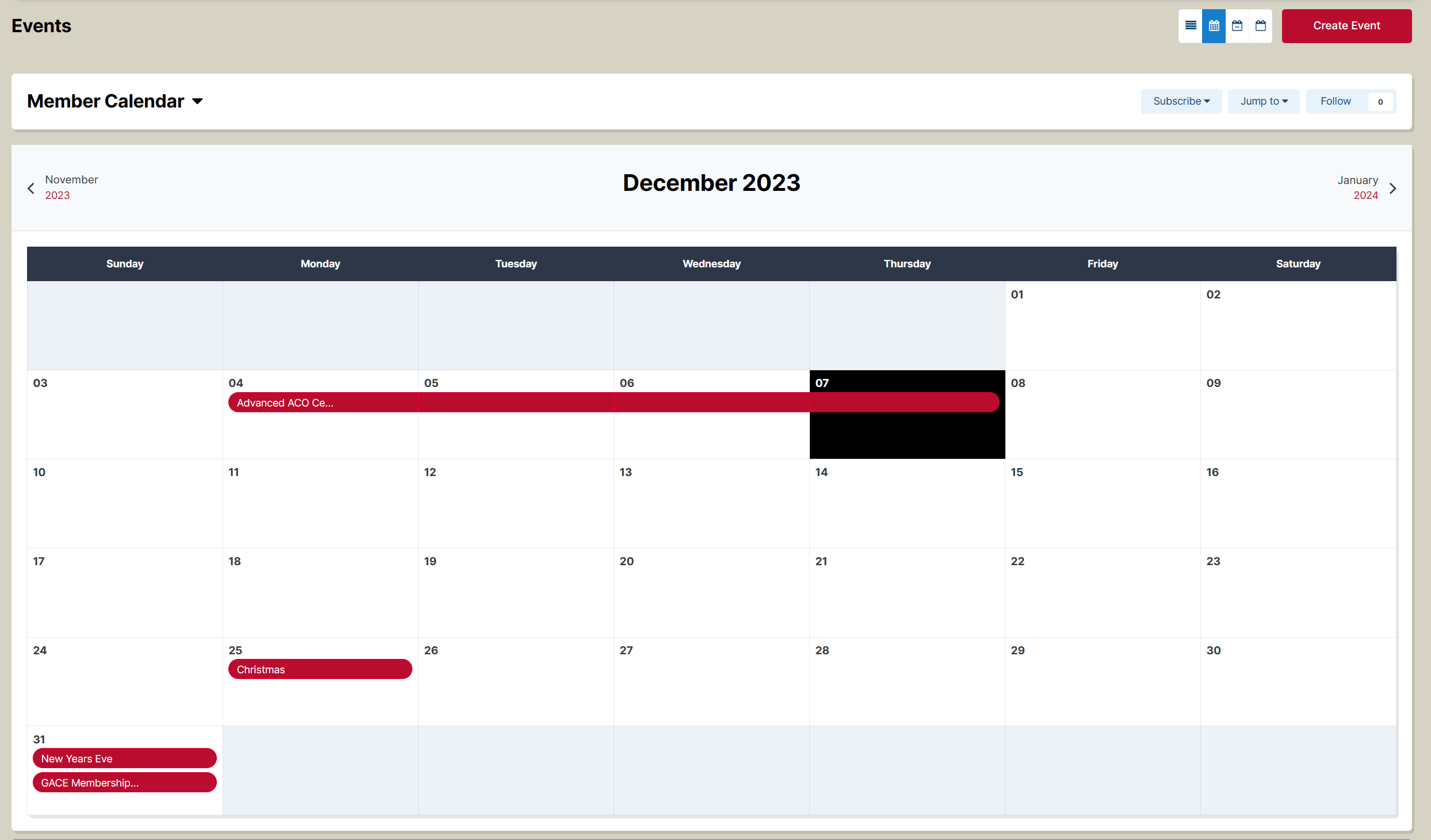
We then move on to the "Month" view.

This view provides you with the entire month of events for you to view. The current day is colored in black, and the events are show by the red lines. All you need do to view a particular event is click on the red line.
The next events view is the "Week" view.

This view gives you the current or users selected week along with all the events for that particular week. The week starts on Sunday and runs through Saturday.

The final view is the "Day" view.
This view displays the current or selected day events.

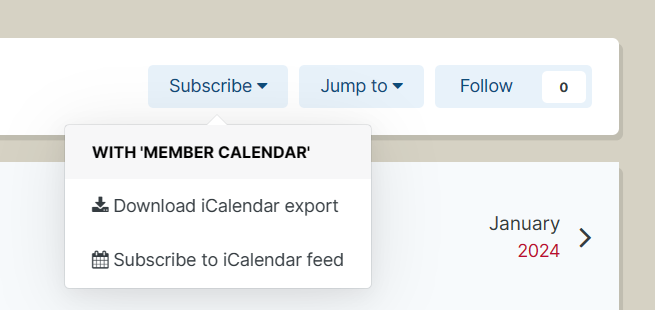
Clicking the "Subscribe' button allows you to download the iCalendar file and import to your personal calendar or you can subscribe to the iCalendar feed. Either way will allow you to keep up with GACE events and happenings from your desk.
On occasion you may see the following RSS (RDF Site Summary or Really Simple Syndication) icon. You will need a RSS reader or some email application allow you to import these files into your computer. You are then able to keep up with the information on the RSS specific items from your desktop without having to log into the GACE Forums.

If you have an event, class or happening, please feel free to post these items to the GACE Members Calendar.
Recommended Comments