






Events - New Features

By Dennis Maidon in Forums Participation
· 576 views
The GACE Calendar is no longer just a calendar. It is now and events driven application.
Just click on the "Overview" page button to see the full effect of the new events feature.
.png.f56df7a5e7c5e3bed5e67fad37495c59.png)
The new Events Overview page will load.
.png.481b4809ffd73c7df6a46d47e2e1031d.png)
The following text and images are from the Invision Software web site.
Featured Events
Community leaders can now promote member-driven events with the “Feature” option. This highlights the event on the main overview page for all to see. It includes the event’s cover photo, date, title and description.
Search Events
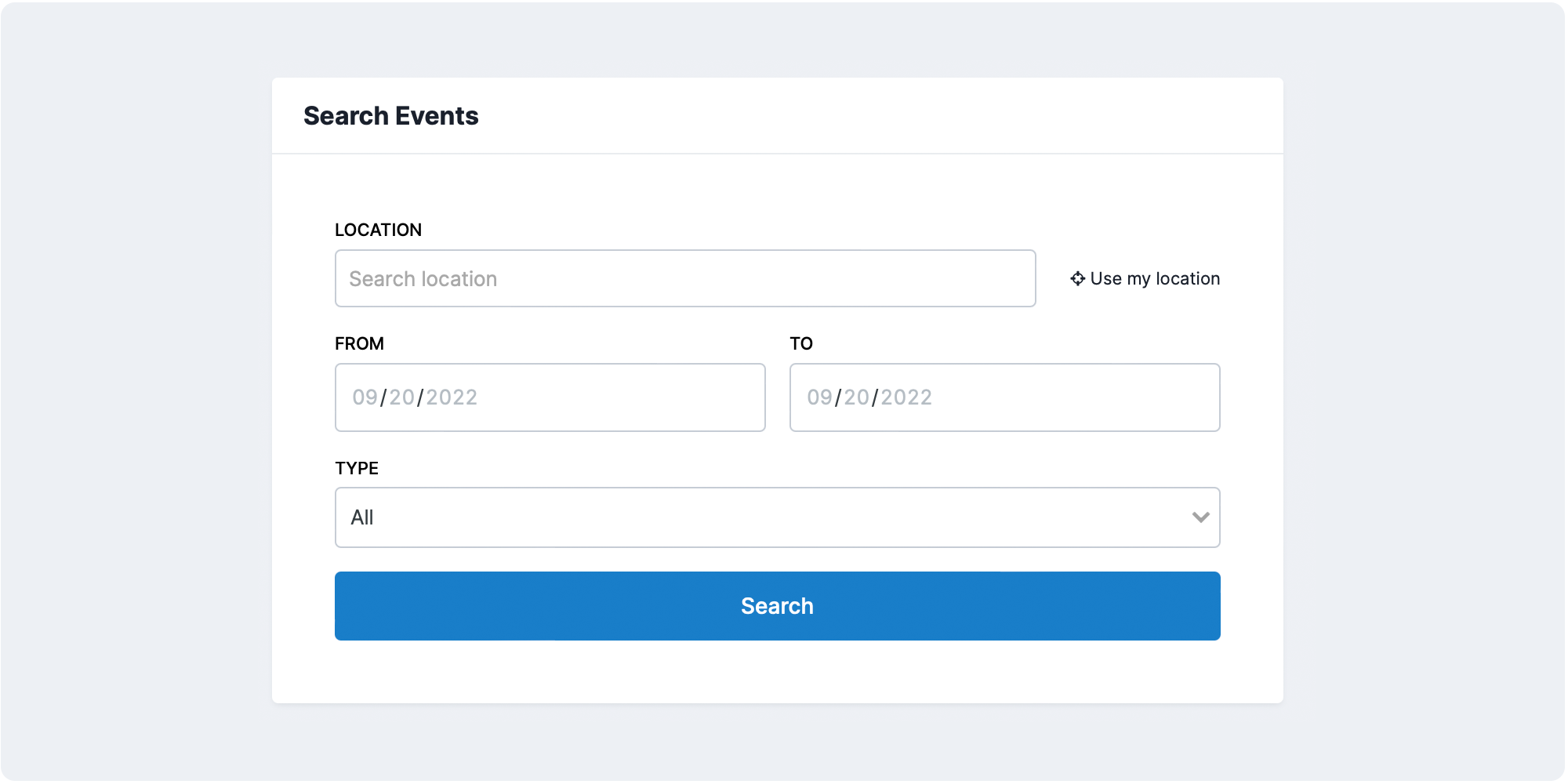
Search for community events that are located near you.
Tapping the “use my location” prompt allows your browser to identify your physical location, then shows a list of events that are in close proximity to you.
Get granular with your search. Filter by general location, date and/or whether the event is an in-person or online event.
Maps

When searching, a map is also available for you to see in an instant what community events are happening.
Happening Near You

This section shows a list of events happening near you. It includes a snap shot of the events happening near your physical location, as well as a map of where the event is taking place.
This tailor-made page displays events based on geo-location, so communities with members from all over the world will view and experience the Events page differently.
If there aren’t any events happening, a message block is displayed instead that says:
Happening Today

On the day of, your event will include a badge to show the entire community the special event is happening.
Online Events

This section displays a list of virtual events within your community. Events are shown in chronological order by date and time.
Browse by month

We extended the search functionality to automatically show both in-person and online events categorized by the month.
This is particularly useful to plan what events you’d like to attend and also see what’s in the pipeline.
Event Page

Here's an example of what an Event's page looks like. It includes the event details, a map if it's an in-person event and an “Open Event” linked button for the online events. Optionally members can RSVP or confirm they attended when you request that per event.
Integrations
A particularly useful addition to our new Events application is the inclusion of popular, third-party video streaming platforms. When creating a virtual event in your Events application, you may include a link to your event and the platform will advertise it with the vendor’s logo so your community knows what to expect. When your members are ready to join, choosing the “Open Event” button will set them on their way.

Below is a complete list of platforms that Invision Community’s Events app can showcase (see examples in the screen shots above):
Zoom
YouTube
EventBrite
On24
Facebook
Google
Webex
Slack
Discord
Microsoft Teams
Here are a few examples of how your community can leverage our Events with in-person events:
Team building meeting
Unite your team with a collaborative event celebrating the company’s wins and victories. Sometimes in-person meetings spark new ideas in ways that a virtual environment can’t.
Donation drive
Round up your local community and raise money for those in need with an in-person fundraiser.
Training programs
Gather a group of community moderators and/or employees together and teach them how to innovate, strategize and lead with a physical training event.
Flash sale
Make Black Friday, Boxing Day and other major retail sales an event within your community. Encourage your community to show up to a limited-time flash sale where in-person purchases are the only route to obtain an exclusive item.
Let's check out some examples for online events:
Virtual happy hour
Let loose with a few of your community buddies at a virtual happy hour. Schedule something once a week or month and make a few extra friends no matter where they live (a cold brew at 5 a.m. your time when it’s 5 p.m. their time might be a tad awkward, but hey, it’s 5 p.m. somewhere).
Holiday party
If your company is remote-based, an online holiday party is the perfect solution to spread the good time vibes.
Interviews
Invite fans of an artist to watch a virtual live stream or music video where they can actively engage and contribute.
Fan gatherings
Speaking of fans or an artist or brand, unite people who share common interests together with a fan-fueled event. Conduct a Q&A, share inside information and create a space for them to celebrate their collective passions.
Recommended Comments