





The "STORE" Menu Option

By Dennis Maidon in Forums Participation
· 212 views
The "STORE" Menu Option
In this post, we are going to cover the "STORE" menu option and what each item covers.
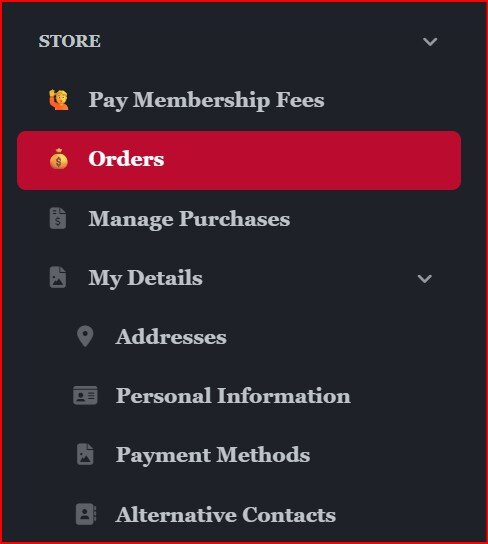
If the Store option is not expanded, let's start by clicking the STORE option. It doesn't matter whether you use the side or top menu system. The options are the same.
ORDERS
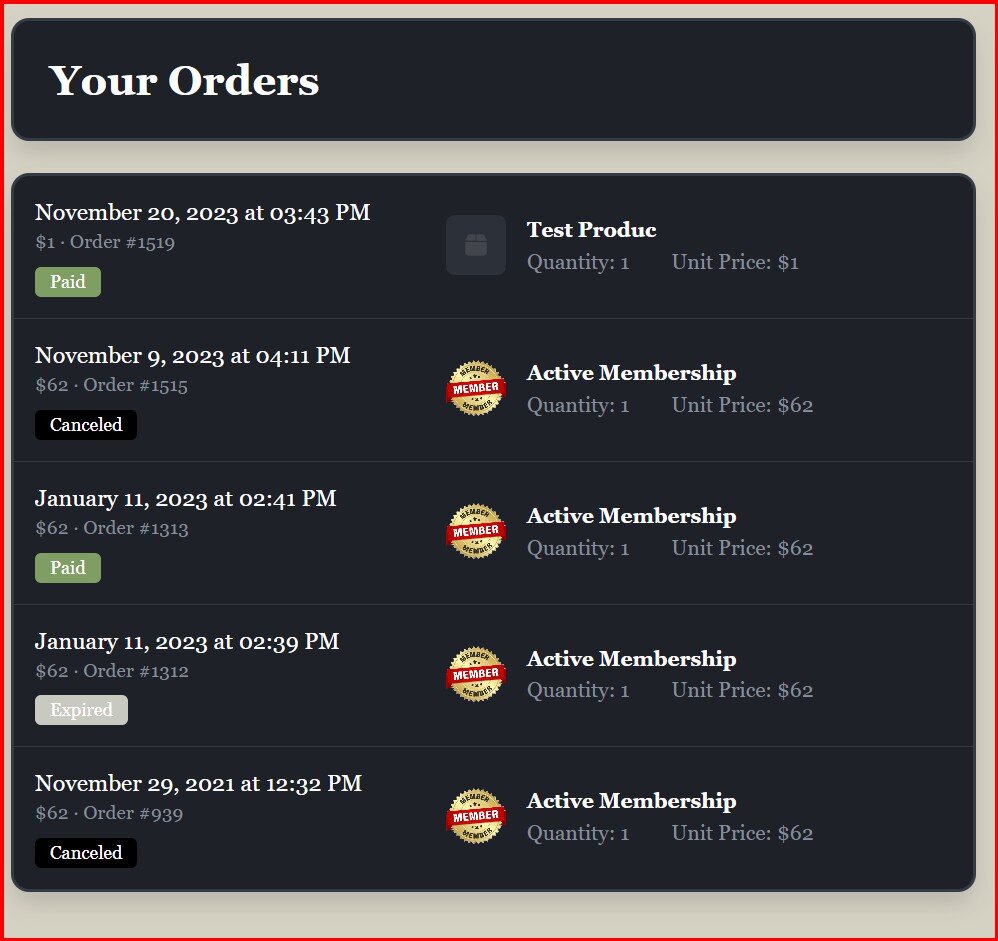 When the Order option is clicked, you will be taken to a page similar to the one shown. This page lists all of the orders that you have placed on the GACE Forums Store system. To view any order, click on the particular that you wish to view.
Print Invoice
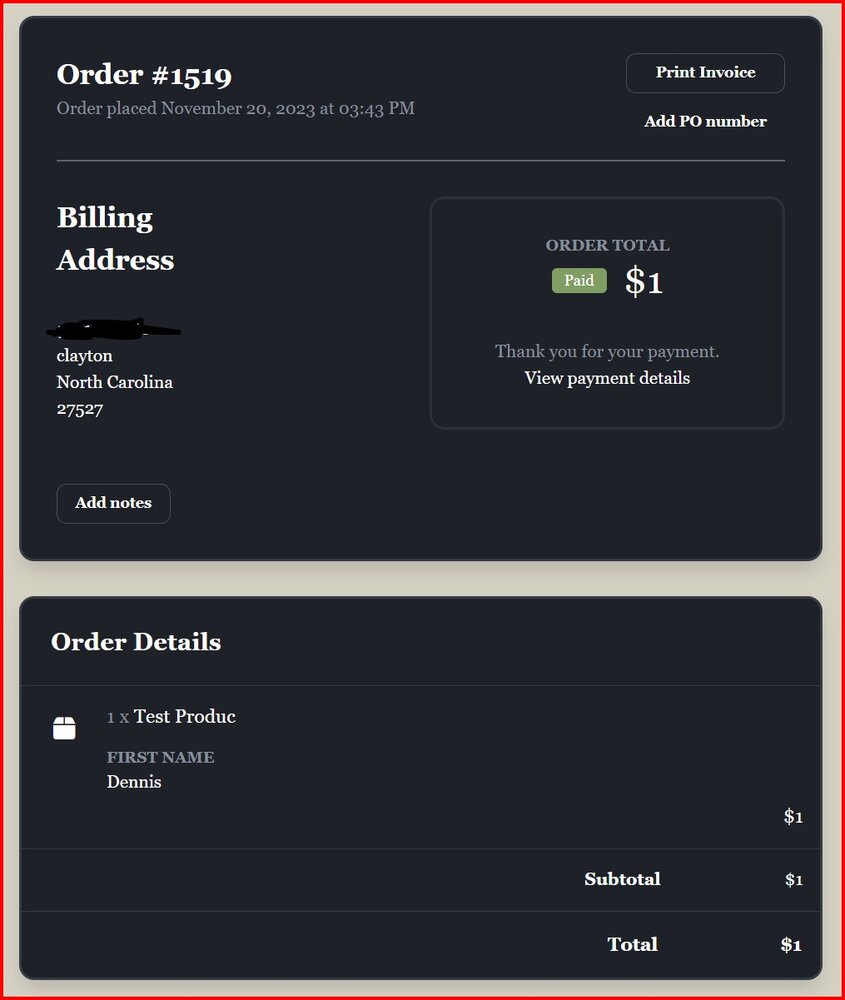 You will then see a page similar to this one. In the upper right corner, there is a button labeled "Print Invoice". Click this button is you wish to print a copy of your invoice or receipt.
MANAGE PURCHASES
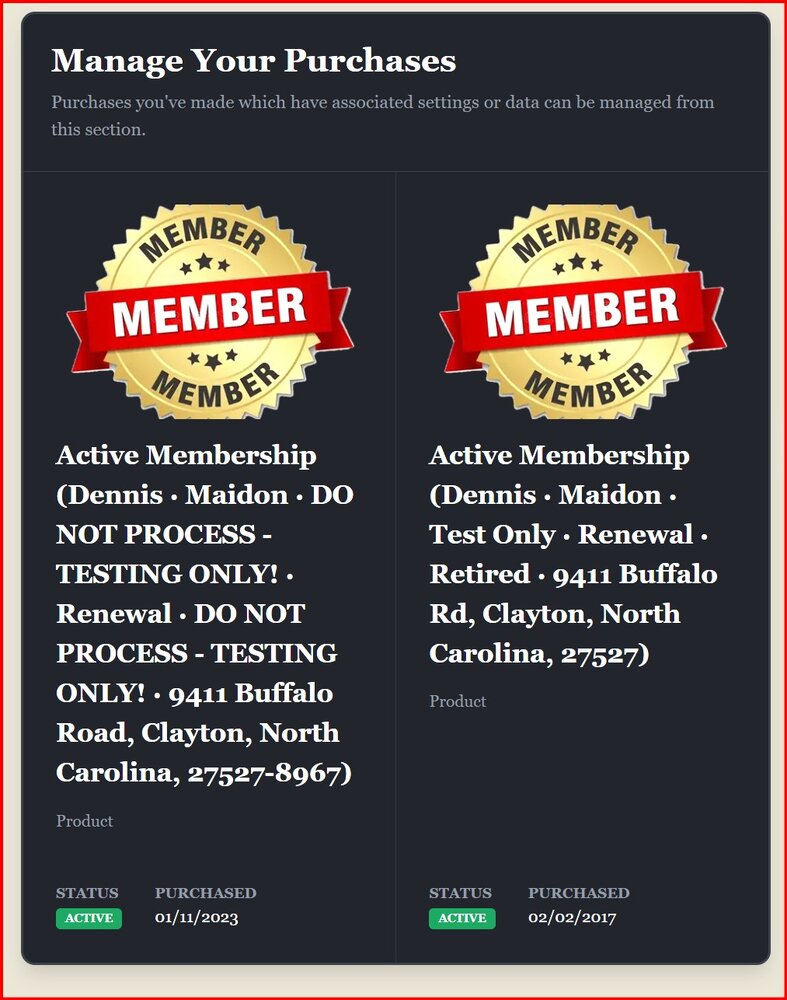
Click this option to manage the purchases you have made. Purchases you've made which have associated settings or data can be managed from this section.
MY DETAILS
Addresses
Your saved addresses are listed here along with your default choice for billing. You can always use a new address when you check out.
Personal Information
Edit all of your personal information that is stored in the GACE STORE system
Payment Methods
Your stored payment methods make it easy to check out when purchasing and will be used automatically for renewal invoices.
You can change or add new payment methods to your account.
Alternative Contacts
Alternative contacts are other users to whom you grant access to your account. Depending on the permissions you give, they may be able to pay invoices for one or more of your purchases, on your behalf.
Dennis Maidon
October 1, 2025
-
 1
1
Recommended Comments