






Volume II Chapter 2 (January 15, 2024)

By Dennis Maidon in Forums Features
· 893 views
It's time to spice up your posts just a bit. As the old saying goes, "A picture is worth a thousand words.".
The GACE Forums provide 3 options when adding images to your posts.
- Upload your personal images.
- PixaBay
- Giphy
The first option is simple. Upload images that you have taken and have full permission to upload to the GACE Forums. You retain full rights to any images that you own. DO NOT upload images that you do not own or have the rights to post.
To upload an image to your content box, you can use the tile upload box at the bottom. You can either click "choose files" and browse your system for the file you want to upload, or drag your file to the box and drop it there. Then you can hover your mouse over the image in the box and select "insert" to insert the image into your post at the exact location you want it to be.

PixaBay allows you to upload stock images from an online database of images. When you are creating your post, there should be a button in the lower right-hand corner of the Content box that says "Other Media"
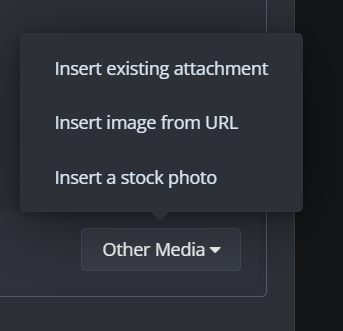 There are three options to choose from. We want the last option for PixaBay. The first option "Insert existing attachment" allows you to search through the existing images and select one from the database or you can select option two and insert an image from a URL off the internet. Just be careful and not upload an image that you do not own or have permission to use.
Select "Insert a stock photo" and select the image you wish to use from the PixaBay window. There is also a search box at the bottom of the window that you can utilize to narrow down the image(s) that you wish to use.
 My search criteria was "sleeping dogs" and this is the image I selected.
Finally we have Giphy. Giphy allows you to utilize animated gifs in you post. At the top of the post content box, there is a menu that contains the Giphy icon. It's a square box with the word "Gif" in it. Click on the Giphy icon and the selection box appears. The same options apply for Giphy that you used for PixaBay. Select one of the give images or, use the search box and type in your search criteria.

 Giphy selection box.
 My search criteria was "interesting" and this is the image I selected to use.
If the images you select are too large for the page, just let your mouse hiver over the image and grab a corner of the image and resize it. It's really simple to do.
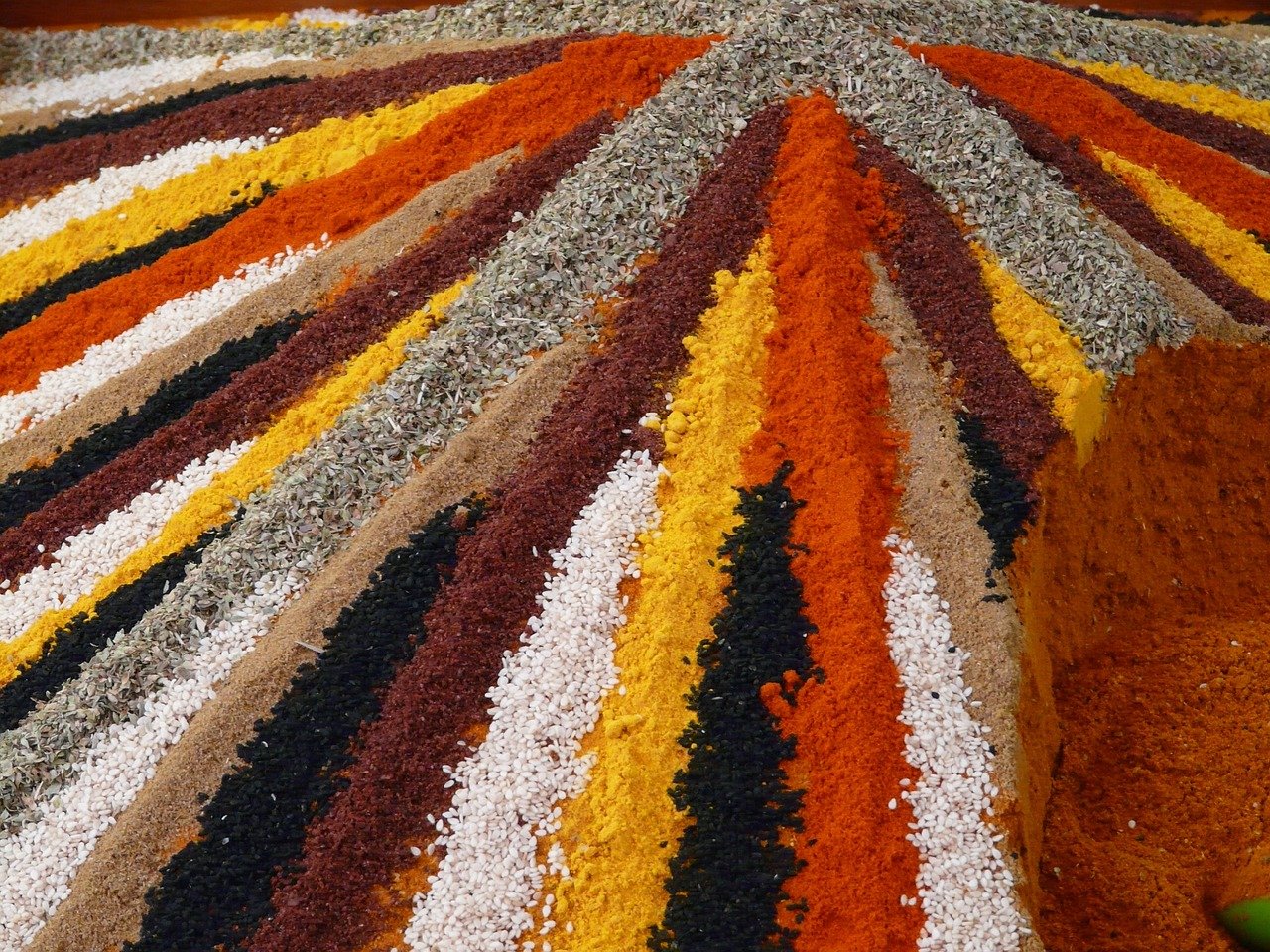
So, spice up your posted with an image or two and make people notice them more. Just don't overdo them. A little spice goes a long ways.
Recommended Comments